

What if your password could never be phished or leaked?
Passkeys are the new login method that does exactly that: a public/private cryptographic pair where the private key stays on your device and the public key lives on the server.
They use a challenge-response process plus origin binding and secure hardware so phishing sites and stolen server databases can’t forge logins.
Bottom line: passkeys make sign-ins faster and far safer.
If you want less password pain, enable passkeys where your accounts support them and protect your device unlock (biometrics or PIN).
Core Mechanics Behind How Passkeys Work
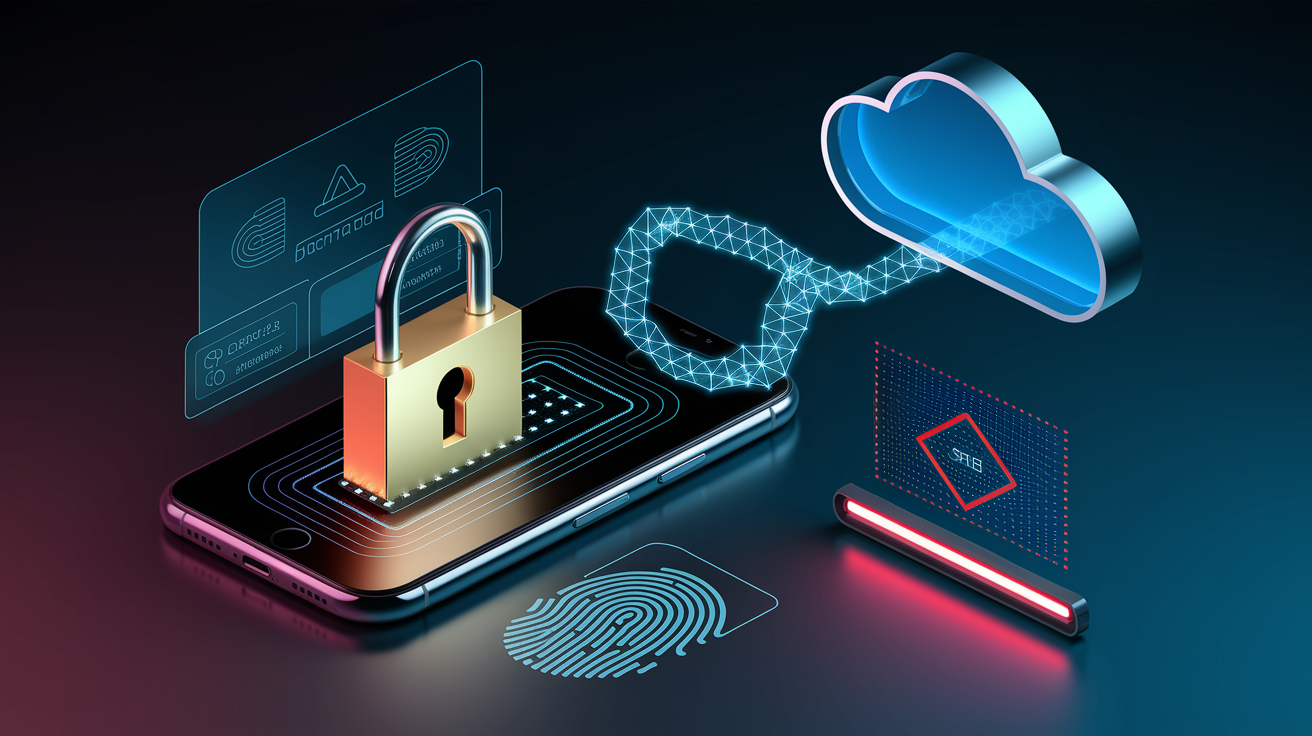
A passkey is a cryptographic login credential that replaces passwords by using a public/private key pair stored in two separate locations. The private key lives on your device and never leaves, while the public key gets sent to and stored by the website or service. This asymmetric encryption model ensures that even if an attacker steals the public key from the server, they can’t derive the private key or forge a valid signature. When you create a passkey, your device or password manager generates both keys at once. Only the public half travels to the server. The private half stays locked behind biometric verification, a device PIN, or a local password. Private keys are also origin bound, meaning they only respond to the exact domain that created them. Try using a passkey on a lookalike phishing site and it’ll fail because the domain mismatch is enforced cryptographically, not by user vigilance.
Authentication happens through a challenge–response process orchestrated by the WebAuthn protocol and FIDO2 standard, which together define how browsers, operating systems, and servers communicate during registration and login. The FIDO Alliance, founded in 2013, governs these specifications. The underlying cryptography has been refined for more than ten years. WebAuthn is the W3C standard API that allows web applications to create and use public key credentials in the browser, while FIDO2 (which includes CTAP2) handles communication between the browser and external authenticators like hardware security keys. Device based authentication means the private key is stored in a secure enclave or trusted execution environment when hardware backed, ensuring that signing operations occur in isolated, tamper resistant memory.
The challenge–response login process unfolds in four distinct steps:
- Server issues challenge. When you tap “Sign in,” the server generates a large random number (the challenge) and sends it to your device.
- Local verification prompt. Your device or password manager displays a prompt asking you to unlock the passkey using biometrics (Face ID, fingerprint) or a PIN.
- Device signs challenge. After you verify locally, the device uses the stored private key to create a cryptographic signature over the challenge and the origin (domain name).
- Server verifies signature. The server receives the signature, verifies it against the public key it stored during registration, confirms the origin matches, and grants access if valid.
Because the private key never leaves your device during this exchange, an attacker intercepting network traffic sees only the challenge, the signature, and the public key. None of which can be reused or reverse engineered to compromise your account. Biometric data stays entirely local. The server only learns that you successfully unlocked your device, not which finger or face pattern was used.
The Cryptography Behind Passkeys

Passkey security rests on asymmetric encryption, where a mathematically linked pair of keys is generated using algorithms such as ECDSA (Elliptic Curve Digital Signature Algorithm) or RSA. The private key is a very long, random string, typically 256 bits or more, designed to be computationally infeasible to guess or derive from the public key. Public keys are safe to store server side even in plaintext because possession of the public key alone doesn’t allow signing new authentication challenges. Only the device holding the matching private key can produce valid signatures. Cryptographic standards have matured over more than a decade under the guidance of the FIDO Alliance, which was founded in 2013 to reduce reliance on passwords through open, interoperable strong authentication.
Key generation happens on device at the moment you create a passkey, drawing entropy from hardware random number generators or secure operating system sources to ensure each key is unique and unpredictable. High entropy (randomness measured in bits) is critical. Without it, an attacker could predict or brute force the private key. Most platforms use at least 128 bits of entropy for key material, far beyond the reach of modern computing to enumerate. The server never participates in private key generation and never sees the private key at any stage.
Core cryptographic components in a passkey flow include:
- Entropy source. Hardware RNG or OS level random pool providing unpredictable seed data for key generation.
- Key length. Typically 256 bit ECDSA or 2048/4096 bit RSA, chosen to balance performance and security margin.
- Signature algorithm. ECDSA over curves like P-256 or EdDSA (Ed25519) for modern implementations. RSA-PSS for legacy compatibility.
- Cryptographic nonce (challenge). A single use random value issued by the server to prevent replay attacks.
- Origin binding. The relying party identifier (domain) is hashed into the signature, ensuring credentials can’t be used cross site.
- Hash function. SHA-256 or SHA-512 to produce fixed length digests of challenges and client data before signing.
Passkey Registration Flow Explained
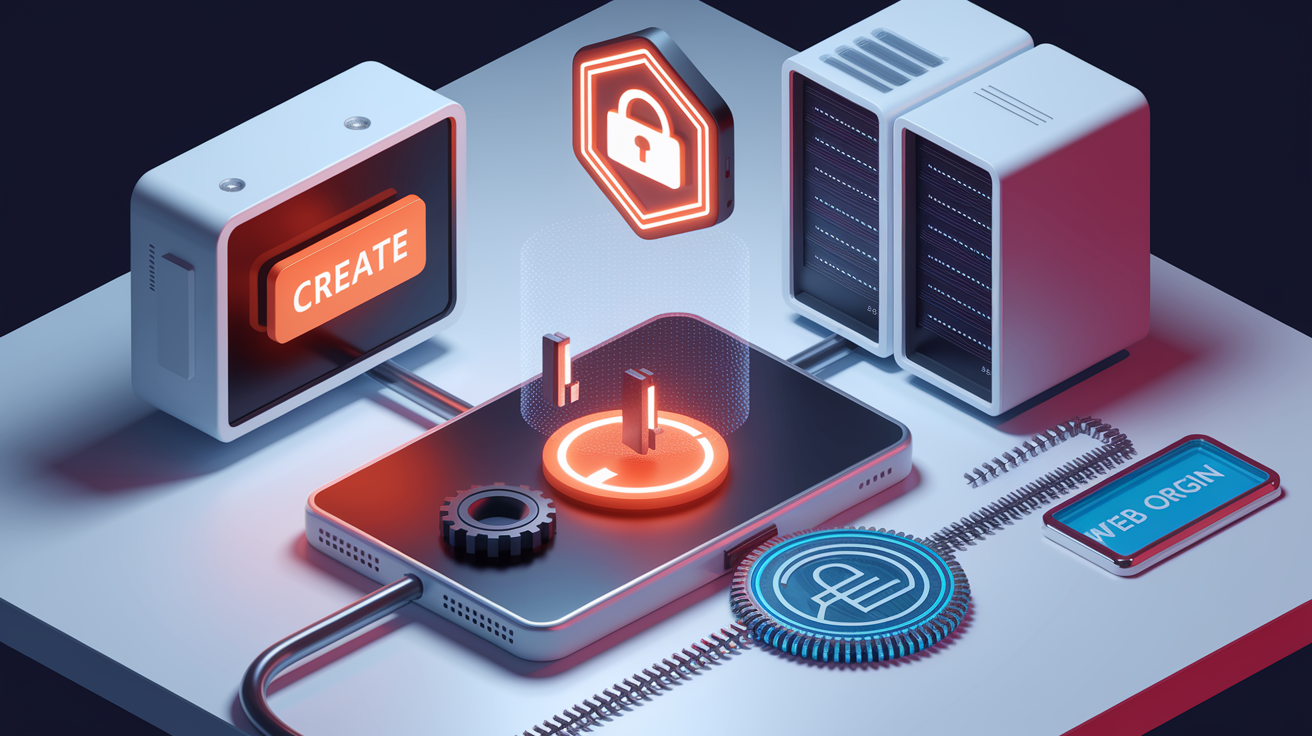
Registration (also called the credential creation ceremony) is the one time process that establishes a passkey for a specific account and domain. During this flow, your device or password manager generates a unique key pair, sends only the public key to the server, optionally provides attestation data to prove the authenticator’s provenance, and binds the credential to the site’s exact origin so it can’t be used elsewhere. Attestation certificates, when requested by the server, are cryptographic statements signed by the authenticator’s manufacturer certifying that the private key was generated inside a specific hardware model or software environment. Servers can validate these certificates against FIDO Metadata Service records to enforce policies like requiring hardware backed keys. The private key is stored in the device’s secure enclave (a dedicated hardware isolation layer) when available, or in encrypted credential storage managed by the password manager or operating system.
| Step | Description | Data Sent | User Interaction |
|---|---|---|---|
| 1. Initiate Creation | User taps “Create a passkey” in account settings or at sign-up. Browser/OS invokes WebAuthn API. | Relying party ID (domain), user handle, challenge from server. | User decides which authenticator to use (device, password manager, or external security key). |
| 2. Generate Key Pair | Chosen authenticator generates a unique public/private ECDSA or RSA key pair, bound to the origin. | None yet. Key generation happens locally. | Biometric scan, device PIN, or hardware key tap to authorize creation. |
| 3. Send Public Key + Attestation | Authenticator packages the public key, optional attestation certificate, and signature over client data + challenge. | Public key (JWK or COSE format), attestation statement (if requested), credential ID. | None. Data is transmitted automatically after user approval. |
| 4. Server Stores & Binds | Server validates attestation (if present), verifies signature, stores public key indexed by credential ID and user account. | Acknowledgment response sent to client confirming registration success. | User sees confirmation message. Passkey is now active for future logins. |
Origin binding ensures that the credential identifier and signatures include a hash of the relying party ID (the domain name), so even if an attacker clones the registration flow on a phishing domain, the resulting passkey will be cryptographically tied to the attacker’s origin and useless on the legitimate site. The private key remains in the secure enclave or encrypted keystore throughout its lifecycle, protected by the device’s boot time attestation chain and operating system access controls, so extraction would require physical device compromise and specialized forensic tools.
Passkey Sign‑In and Authentication Flow

The authentication ceremony is the operational login sequence triggered each time you return to a site that supports passkeys. Unlike registration, which is a one time setup, authentication happens on every sign in and is designed to be faster and more resistant to interception than typing a password. The server begins by sending a fresh cryptographic challenge (a large random number generated for that session), and your device responds by signing that challenge with the private key after you unlock it locally using biometrics or a PIN. Because the private key resides in a secure enclave (on hardware backed implementations) or in encrypted storage managed by the credential provider, the signing operation occurs inside protected memory that the operating system and other applications can’t directly access, reducing the attack surface for malware or side channel exploits.
All data exchanged between client and server during authentication travels over TLS (Transport Layer Security), which provides an encrypted tunnel preventing eavesdropping and tampering. TLS doesn’t replace the passkey’s cryptographic proof, but it ensures that challenges, signatures, and public keys aren’t exposed to network observers. The relationship between TLS and passkeys is complementary. TLS secures the transport channel, while the passkey signature proves user identity and intent at the application layer.
The four step authentication flow proceeds as follows:
- User initiates login. You navigate to the site and tap “Sign in.” The server generates a random challenge (nonce) and sends it along with a list of acceptable credential IDs (if the server knows your account) or issues a discoverable credential request (if it doesn’t).
- Device prompts for verification. Your browser or password manager displays an account selection prompt (if multiple passkeys are stored) and then an unlock prompt (Face ID, fingerprint, PIN, or security key tap).
- Device signs the challenge. After successful local verification, the authenticator retrieves the private key from secure storage, constructs a data structure containing the challenge, the origin (relying party ID), and a counter value, and computes a cryptographic signature over that structure.
- Server verifies and grants access. The client sends the signature, the counter, and optional user presence flags back to the server. The server verifies the signature using the stored public key, checks that the origin matches, confirms the counter has incremented (to detect cloned authenticators), and issues a session token or cookie if all checks pass.
What remains device side throughout this process is the private key itself. It never appears in network packets, server logs, or browser memory accessible to JavaScript. What moves across the network are the challenge (server to client), the signature and counter (client to server), and optionally the credential ID if the server doesn’t already know which public key to use for verification.
Types of Passkeys and Cross‑Device Sync Behavior
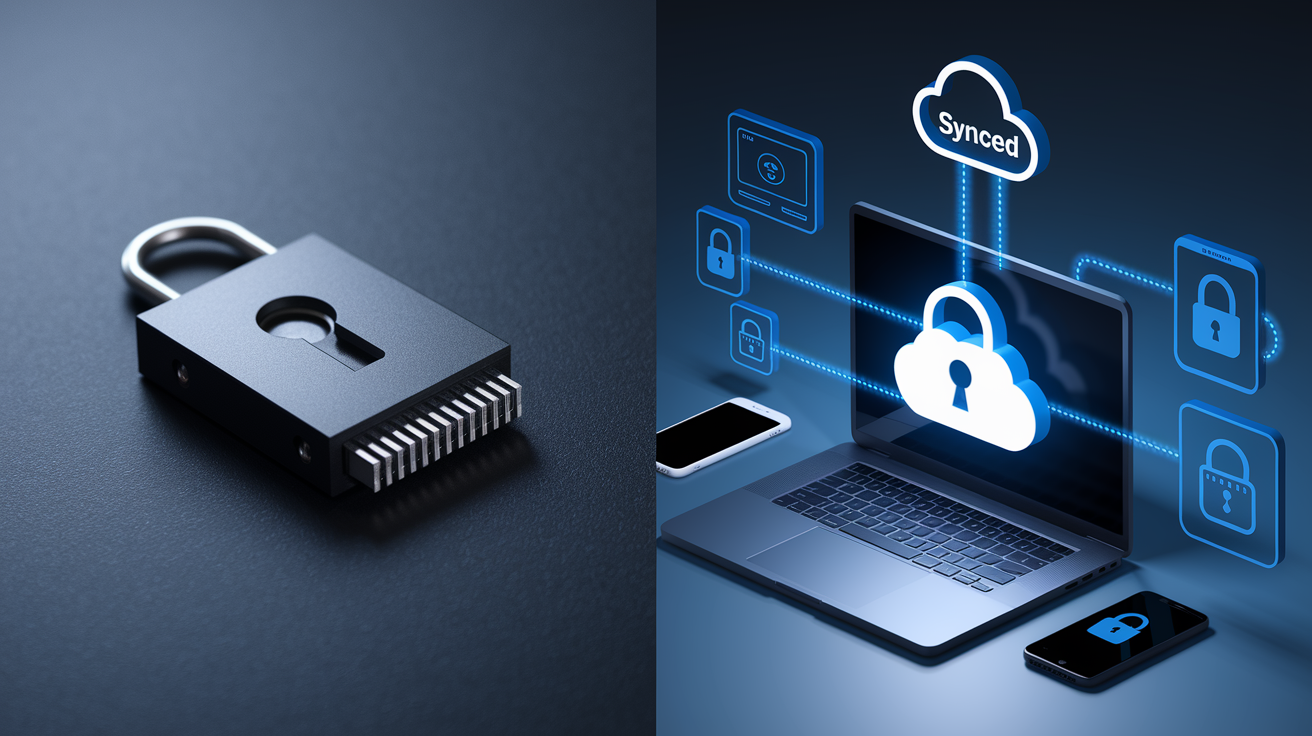
Passkeys come in two primary deployment models: device bound (also called roaming authenticators when implemented as external hardware) and synced (also called platform authenticators when built into the OS, or software backed credentials when managed by a password manager). Device bound passkeys are stored on dedicated hardware security keys like YubiKey or Google Titan, where the private key is generated inside a tamper resistant chip and can never be exported. To use the same passkey on a second laptop or phone, you must physically plug or tap the security key each time you sign in. This model offers the highest assurance because the private key literally can’t leave the device, but it requires you to carry the key and have a backup key in case of loss or damage.
Synced passkeys, by contrast, store the private key in an encrypted cloud keychain or password manager that can synchronize across your devices using end to end encryption. For example, an iOS passkey created on your iPhone is encrypted with keys derived from your iCloud Security Code or device passcode, uploaded to iCloud Keychain, and then downloaded and decrypted on your iPad or Mac when you sign in with the same Apple ID. Android and Windows offer similar setups through Google Password Manager and Microsoft accounts. Recovery in a synced model depends on the ecosystem. If you lose all your Apple devices, you can restore passkeys by signing into iCloud on a new device (assuming you remember your iCloud credentials or have account recovery configured). If you lose access to your Google account, passkeys stored there are also lost unless you exported them or saved duplicates in a cross platform password manager.
Key differences between device bound and synced passkeys include:
- Portability. Synced passkeys travel with your cloud account. Device bound keys require physical possession of the hardware.
- Backup and recovery. Synced passkeys are backed up automatically (encrypted). Hardware keys require you to enroll a second key as backup or use account recovery flows provided by the service.
- Attack surface. Synced passkeys depend on the security of your cloud account credentials and the provider’s encryption. Hardware keys are immune to cloud breaches but can be physically stolen (though still protected by PIN/biometric).
- Cross device sign in. Synced passkeys enable seamless login on any device in your ecosystem. Hardware keys enable cross device login by carrying the key or using proximity (Bluetooth/NFC) with QR code flows.
- Synchronization challenges. Synced credentials may lag during network outages or fail to sync if end to end encryption keys are unavailable. Hardware keys have no sync delay because they never sync.
The credential lifecycle for synced passkeys includes creation, cloud backup, cross device propagation, and eventual deletion if you remove the passkey from settings or wipe your account. For hardware keys, the lifecycle is simpler: creation occurs on key, the private key stays on key until the key is reset or destroyed, and deletion happens only by overwriting the slot or resetting the entire authenticator.
Security Advantages and Phishing Resistance of Passkeys

Passkeys eliminate entire classes of attacks that plague passwords because they’re cryptographically bound to the origin (domain) where they were created and can’t be reused elsewhere. Phishing resistance is the standout advantage. If an attacker sets up a fake login page at “example-login.phishing.com” and tricks you into visiting it, your passkey for “example.com” won’t be presented. The browser and authenticator enforce origin matching at the protocol level, so even a perfect visual replica of the real site can’t harvest your credential. A 2025 consumer study found that 36 percent of respondents had experienced at least one account compromise in the prior year due to weak, reused, or stolen passwords, a risk passkeys directly address by making credential theft and reuse technically impossible.
Man in the middle attacks that intercept login traffic also fail against passkeys because the signature includes a hash of the challenge and the origin. An attacker relaying data between you and the real server would need to forge a signature over the attacker’s own origin, but they lack the private key to do so. Public keys stored on servers pose no threat if leaked in a data breach. Knowing the public key doesn’t allow an attacker to sign challenges, and brute forcing the private key from the public key is computationally infeasible with current and foreseeable technology. User privacy is preserved because biometric templates (fingerprint maps, face scans) never leave your device. The server only receives a signed assertion that you successfully verified locally, with no biometric data transmitted or stored server side. Cryptographic algorithms used (such as ECDSA with curve P-256, EdDSA/Ed25519, or RSA-PSS) have been vetted by standards bodies and are resistant to known attacks when implemented with sufficient key lengths.
Four key protections passkeys provide are:
- No reusable secrets. The private key never travels over the network and can’t be typed into a fake site or stolen from a server database.
- Origin binding. Credentials are tied to a specific domain at creation. Cross origin use is blocked by the protocol, not user awareness.
- Reduced man in the middle vulnerability. Signed challenges include origin hashes, so relay attacks can’t forge valid signatures for a different domain.
- Credential discoverability controls. Synced passkeys can be “discoverable,” allowing the authenticator to suggest accounts without the server sending a hint, while still requiring user verification to unlock and sign.
Developer Implementation Notes for Passkeys

Integrating passkeys into a web application requires implementing the WebAuthn API on both client and server, handling JSON formatted credential requests and responses, and correctly encoding binary data as base64url strings for transport. On the client side, you call navigator.credentials.create() during registration and navigator.credentials.get() during authentication, passing a PublicKeyCredentialCreationOptions or PublicKeyCredentialRequestOptions object that specifies the relying party ID (your domain), a server generated challenge (which must be cryptographically random and at least 16 bytes), user information (user ID and display name), and acceptable cryptographic algorithms (for example, ES256 for ECDSA with SHA-256). The browser returns a PublicKeyCredential object containing an AuthenticatorAttestationResponse (registration) or AuthenticatorAssertionResponse (authentication), both of which include ArrayBuffer fields that must be base64url encoded before sending to your backend.
Server side, you must validate the origin and relying party ID in the client data JSON, verify the signature over the concatenation of the authenticator data and a SHA-256 hash of the client data, check that the challenge matches the one you issued, and optionally validate attestation certificates against the FIDO Metadata Service if you require hardware backed keys. Browser compatibility is broad: iOS 16 and later, Android 9 and later, Windows 10/11 with current versions of Chrome, Edge, and Firefox, and macOS 13 (Ventura) and later all support WebAuthn and passkeys. Mobile OS support includes platform authenticators (Face ID, Touch ID on iOS; biometric unlock on Android) and external security keys via NFC or USB-C. Developers should offer fallback UI if the device doesn’t support passkeys or if the user declines the prompt. Multi account flows require careful UX. If a user has multiple passkeys for your site, the browser will show an account selection prompt before the biometric prompt. Your server should send an allowCredentials list with the credential IDs it knows, or omit the list to trigger a discoverable credential flow that lets the authenticator suggest accounts.
Standard libraries and SDKs simplify implementation: the Yubico WebAuthn server libraries (Java, .NET, Python), Duo Web SDK, Auth0 passkey support, and the W3C/FIDO reference implementations all provide helper functions for challenge generation, signature verification, and attestation parsing. API endpoints required are typically a registration initiation endpoint that returns PublicKeyCredentialCreationOptions as JSON, a registration completion endpoint that accepts the base64url encoded attestation response and stores the public key, an authentication initiation endpoint that returns PublicKeyCredentialRequestOptions, and an authentication completion endpoint that verifies the assertion and issues a session.
Six common implementation pitfalls to avoid:
- Incorrect challenge encoding. Always use cryptographically random challenges of at least 16 bytes and encode as base64url. Don’t reuse challenges across requests.
- Skipping origin validation. Verify that
clientDataJSON.originmatches your expected HTTPS origin to prevent cross origin credential injection. - Ignoring the authenticator data flags. Check the user present (UP) and user verified (UV) flags to ensure the user actively participated and verified their identity.
- Not handling counter increments. The signature counter should increase on each authentication. A decrement or reset may indicate a cloned authenticator.
- Over requesting attestation. Only request attestation (
attestation: "direct") when you have a policy reason (enterprise compliance). Most consumer sites should use"none"to preserve user privacy. - Failing to offer account recovery fallbacks. If a user loses all their devices or passkeys, provide a recovery flow (email reset, backup codes) so they’re not permanently locked out.
Final Words
You’ve seen the mechanics: passkeys use public/private key pairs generated and kept on your device, WebAuthn and FIDO2 handle registration and sign-in, and servers only store public keys. The challenge–response flow and origin‑bound credentials block phishing and password reuse.
If you’ve asked how do passkeys work in real life, they replace shared secrets with cryptographic proofs unlocked by biometrics or a PIN. Turn them on where available — they make accounts simpler and safer.
FAQ
Q: What are the downsides of passkeys?
A: The downsides of passkeys are limited recovery options if you lose a device, uneven cross-device and site support, occasional login friction, and reliance on OS or cloud backups for restores.
Q: Do you still have a password if you use a passkey?
A: You may still have a password if you use a passkey: some services keep a fallback password or secondary login method until they fully migrate to passkey-only sign-in.
Q: How do passkeys work for dummies?
A: Passkeys work for dummies by keeping a private key on your device and a public key on the site; during login your device signs a server challenge after you confirm with biometrics or a PIN.
Q: What happens to passkeys if you lose your phone?
A: If you lose your phone, device-bound passkeys are lost; synced passkeys can be restored from your OS cloud backup, otherwise use account recovery or contact the service to regain access.