

What if your apps are watching you more than you think?
Android has built-in controls to stop that, but they’re tucked in menus most people never open.
This post walks you through quick audits — Permission manager, Privacy Dashboard, and per-app settings — and explains the practical choices like “Ask every time” or “Allow only while using the app.”
You’ll learn to spot background camera, mic, and location use, flip system-wide mic/camera toggles, and revoke file or contact access without breaking apps.
Do this and you’ll cut tracking and protect your privacy fast.
Immediate Steps to Manage Permissions Quickly
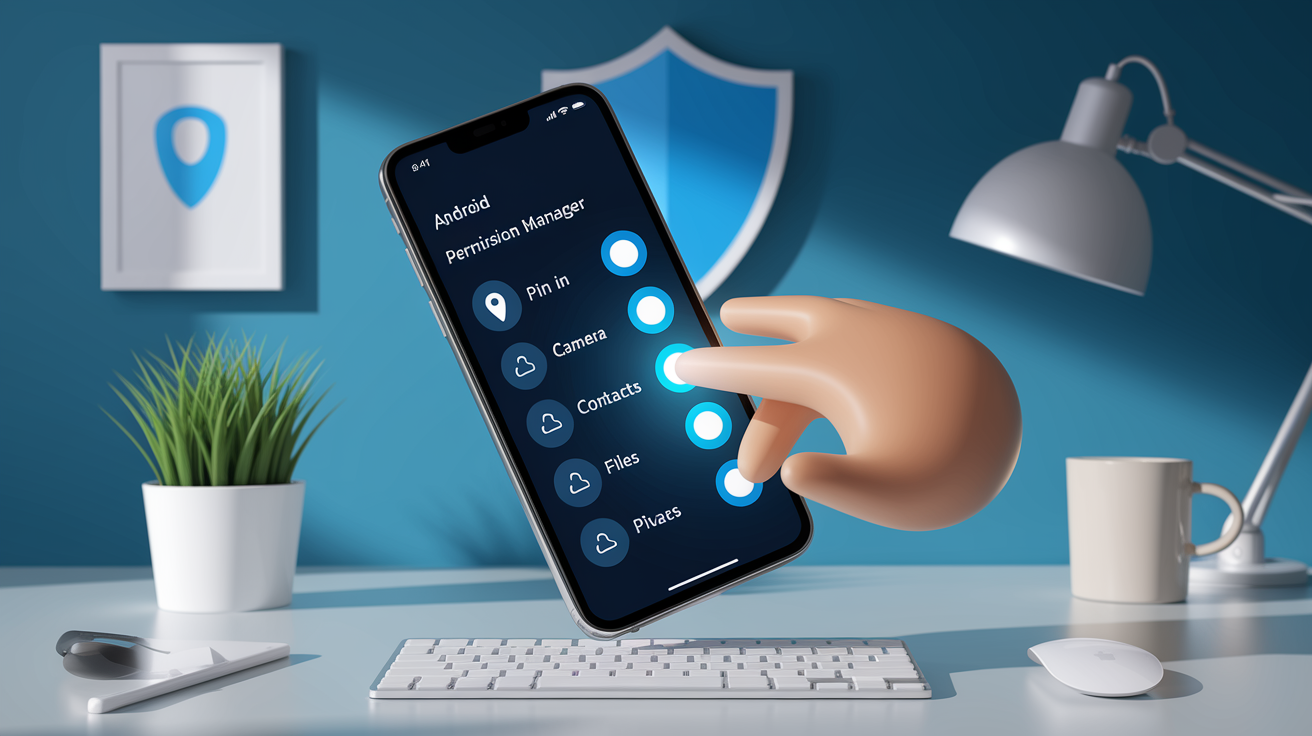
Open Settings, tap Security & Privacy, then Privacy, then Permission manager. You’ll see every permission category (Location, Camera, Microphone, Contacts, Files) with a number showing how many apps currently have access. Tap any category to see which apps are allowed and which aren’t.
For controls on a single app, go to Settings > Apps > tap the app > tap Permissions. You’ll see everything that app has requested, split into Granted and Denied. Tap any permission to change it right away.
Android might auto-revoke permissions from apps you haven’t opened in a few months, cutting off background data collection and clearing temp files. This happens without any heads-up, so apps you rarely touch often lose access over time.
Quick audit steps:
- Open Settings and go to Security & Privacy > Privacy > Permission manager.
- Tap Location to see every app with location access.
- Pick an app you don’t recognize or barely use.
- Switch it to Don’t allow or Ask every time.
- Go back to Permission manager and do the same for Camera, Microphone, and Contacts.
- Check Files and media and revoke access for apps that don’t need to read your photos or documents.
Understanding Android Permission Types and Risk Levels

Android splits permissions into runtime permissions and special system-level permissions. Runtime permissions cover sensitive stuff like location, camera, microphone, contacts, calendar, call logs, and files. Apps have to ask for these while you’re using them, and you can say yes or no to each one. System-level permissions (sometimes called special app access) control deeper functions like changing settings, drawing over other apps, accessing all files, or monitoring what apps you use. These require you to dig into system settings and manually turn them on. Apps can’t flip these on with a simple popup.
Android 12 and newer added hardware privacy controls. A tiny green dot shows up in the top corner whenever an app uses your camera or microphone, even when it’s running in the background. Quick settings tiles let you shut off camera and microphone access for everything at once. Useful if you want total silence until you flip the toggle back. Newer versions also show when apps last used a permission, so you can catch background data grabs you didn’t expect.
Permission types and what they risk:
- Camera — Apps can snap photos, record video, or stream live. Risk: overlays can grab login details during video calls.
- Microphone — Apps can record audio nonstop. Risk: background recording without any visible sign on older Android builds.
- Location — Apps can track precise GPS or rough location from cell towers. Risk: nonstop tracking shows your home, work, and daily patterns.
- Contacts — Apps can read and edit your contact list and see all accounts on your device. Risk: data harvesting for ads or social mapping.
- Files and media — Apps can read, change, or delete photos, videos, docs, and downloads. Risk: apps can peek at sensitive files and personal photos.
- SMS and call logs — Apps can read texts, send messages, or check call history. Risk: one-time passwords and private chats exposed.
- Body sensors — Apps can pull health data from fitness trackers and step counters. Risk: sharing health stats without asking.
- Nearby devices — Apps can find and connect to Bluetooth gadgets and Wi-Fi networks. Risk: tracking through device fingerprinting.
App-by-App Permission Control on Android
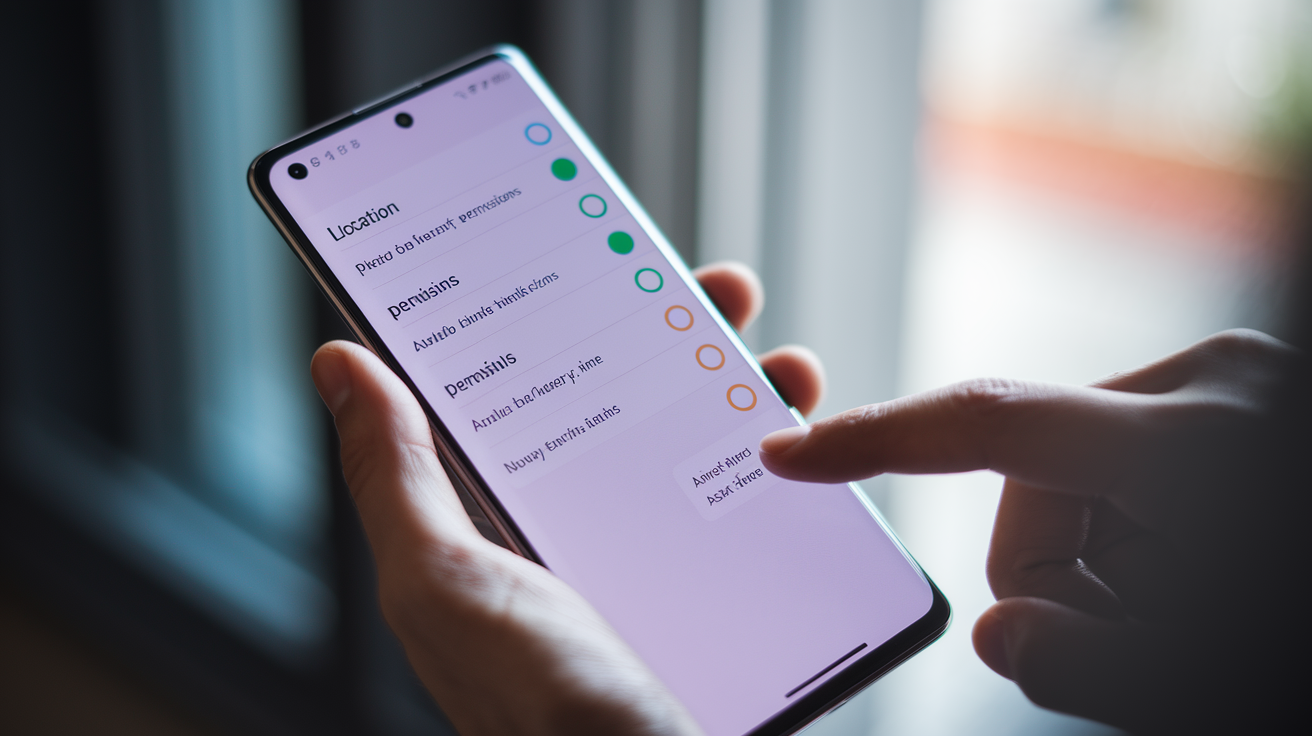
Go to Settings > Apps, tap See all if your phone hides the full list, then pick an app. Tap Permissions to see two groups: permissions the app can use and permissions you’ve blocked. Each entry shows when the app last touched that data (usually in small gray text below the permission name). If an app hasn’t used a permission in months but still has it, you can probably revoke it without breaking anything.
Tap any permission to see your options. Most show at least two choices (Allow or Don’t allow), but sensitive ones like Location, Camera, and Microphone usually have three or four. “Allow only while using the app” blocks access when the app isn’t open on your screen. “Ask every time” makes the app request permission each time it needs access, putting you in control of every use. “Allow all the time” lets the app run in the background constantly. Android saves this option for a handful of permissions like Location, and you should use it sparingly. Google Maps needs it for Timeline tracking, but most apps don’t. If you deny a permission and later try a feature that needs it, the app will ask again, giving you a chance to allow it when it makes sense.
Some screens show permission rationales when developers bother to write them, explaining why the app wants a specific permission. If an app asks for your contacts without explaining how it uses them, say no. Good apps keep working with denied permissions, though features tied to those permissions won’t function. Ride apps can’t show nearby drivers without location. Messaging apps can’t send photos without file access. Most apps handle this fine, offering manual workarounds or turning off optional features.
| Permission Type | Typical Options | Notes |
|---|---|---|
| Location | Allow all the time / Allow only while using the app / Ask every time / Don’t allow | Pick “while using” for navigation; “all the time” turns on background tracking |
| Camera / Microphone | Allow / Ask every time / Don’t allow | Some versions show “While using”; “Ask every time” adds friction but gives you maximum control |
| Contacts / Calendar | Allow / Don’t allow | No “while using” on most builds; it’s all or nothing |
| Files and media | Allow / Allow access to media only / Don’t allow | Android 13+ has “Select photos and videos” to share specific files without full access |
| Notifications | Allow / Don’t allow (with toggles for notification types) | Some apps let you allow certain alerts (messages) while blocking others (promos) |
Managing Sensitive Permissions (Location, Camera, Microphone)

Location permissions give you precision controls on Android 12 and up. When an app asks for location, you can pick “Precise” to share exact GPS or “Approximate” to share just your general area based on cell towers and Wi-Fi. Approximate location lands within a few hundred meters. That’s enough for weather apps, local news, or store finders, but not for turn-by-turn directions. Apps that actually need precise location will tell you why. If a weather or retail app asks for precise without good reason, switch to approximate. For apps like Uber or Google Maps, precise is necessary, but you should still go with “Allow only while using the app” to stop background tracking when you’re not actively navigating or ordering.
Camera and microphone permissions create overlay and eavesdropping risks. If a sketchy app has “Display over other apps” permission, it can draw a fake screen on top of a video call and grab your login while you type. To cut this risk, deny camera and mic to apps that don’t need them, and check Special app access settings (next section) to pull overlay permissions from unknown apps. Android 12 added a green dot indicator. Look for a tiny green circle in the top-left corner whenever an app uses your camera or mic. If the dot pops up when nothing should be recording, open your recent apps and force-close anything suspicious, then check permissions immediately.
You can kill camera and mic access system-wide with Quick Settings toggles. Swipe down from the top, find Camera access and Mic access tiles, and tap them to block everything. When disabled, even apps with permission can’t record until you flip the toggle back. This works great during meetings, in sensitive spots, or when you want zero chance of background listening. The toggles don’t permanently revoke permissions. They’re just a temporary global shutoff.
For apps asking for “Allow all the time” location, think hard about whether nonstop tracking is worth it. Google Maps uses it to build your Location History timeline, letting you review everywhere you’ve been. But it also means Google logs your movements constantly. If you don’t use Timeline, switch to “Allow only while using the app.” Fitness apps often want all-time access to log runs and walks in the background. If you start workouts manually, “while using” is plenty. Social and shopping apps rarely need continuous location. Deny all-time and grant it only while browsing.
Using the Privacy Dashboard and Permission Manager Effectively

The Privacy Dashboard shows which permissions apps used in the past 24 hours, how many times, and which apps touched them. Open Settings > Security & Privacy > Privacy Dashboard to see a timeline. Tap any permission to view the full list of apps that used it and exactly when. If an app you rarely open accessed your location or mic in the middle of the night, that’s a red flag. Open the app’s permission settings and yank access right away.
Permission Manager gives you a view organized by permission type instead of by app. Open Settings > Security & Privacy > Privacy > Permission manager to see every permission category with a number showing how many apps have access. Tap Microphone to see all apps with mic permission, broken into sections: “Allowed,” “Allowed only while in use,” “Ask every time,” and “Not allowed.” Scroll the allowed list and revoke access from anything that doesn’t need to record audio. Do the same for Camera, Location, Contacts, Files, and other sensitive stuff.
Some Android builds let you add a Privacy Dashboard widget to your home screen or lock screen for one-tap access to recent permission use. Long-press an empty spot on your home screen, tap Widgets, scroll to Settings or Privacy, and add the Dashboard shortcut. Makes it way easier to check permission activity daily without digging through Settings every time.
Special App Access and System-Level Permission Auditing

Special app access permissions control system-level stuff that regular runtime permissions don’t touch. These include changing system settings, displaying overlays on top of other apps, accessing all files on your device, monitoring app usage, turning on picture-in-picture video, and installing unknown apps. Because they grant deep system control, Android buries them under Settings > Apps > Special app access (you might need to tap a three-dot menu to find this). Each permission type has its own list showing which apps have access, and you have to revoke them one by one.
Display over other apps (also called “draw over other apps”) lets apps put floating windows, chat heads, or sticky notifications on top of everything else. Messaging apps use this for incoming call pop-ups. Video apps use it for floating players. The security risk: a bad app can draw a fake login screen over your banking app and steal your password as you type. Open Special app access > Display over other apps and look through the list. If you see unfamiliar apps, sideloaded stuff, or old utilities you don’t use anymore, pull their access.
Modify system settings lets apps change Wi-Fi, Bluetooth, brightness, volume, and Do Not Disturb without asking. Automation tools and accessibility apps need this, but most apps don’t. Check Special app access > Modify system settings and deny access to anything that hasn’t explained why it needs system control.
Usage access (also called “access usage data”) lets apps see which apps you open, how long you use them, and when you get notifications. Parental controls, screen time trackers, and digital wellbeing tools need this, but ad SDKs and analytics libraries also ask for it to build detailed behavior profiles. Look at Special app access > Usage access and revoke access from anything that doesn’t explicitly offer usage tracking as a main feature.
All files access gives read and write to every file and folder on your device, skipping scoped storage limits. File managers and backup tools need this, but very few other apps do. If a game, social app, or utility asks for all-files access, say no. Those apps should use the Android 13+ photo picker to grab specific media instead. Open Special app access > All files access and make sure only trusted file management apps have it.
Picture-in-picture (PiP) lets video apps show a small floating window while you use other apps. YouTube, TikTok, and video calling apps use this. PiP permissions are usually low risk, but if an app abuses it by showing ads or pushy overlays, yank its PiP access under Special app access > Picture-in-picture.
Android Version Differences (Android 11–13+) and OEM Menu Variations
Android 11 brought scoped storage, cutting broad file access and forcing apps to use specific APIs for photos, videos, and docs. Apps built for Android 11 or later can’t ask for the old “Storage” permission and have to request “Files and media” instead or use the Android 13 photo picker. If you’re on Android 11 or 12 and an app asks for storage, check whether it actually needs full access or can work with media-only.
Android 12 added the Privacy Dashboard, camera and mic hardware toggles, and approximate location controls. The green dot shows up whenever an app uses your camera or mic, even if the app’s in the background. Mic and camera quick settings tiles let you shut off all access system-wide. Android 12 also started showing permission rationales more often, pushing developers to explain why permissions are needed before you grant them.
Android 13 brought the photo picker, which lets you pick specific images and videos to share without giving an app access to your whole photo library. Apps targeting Android 13 or later have to use this picker for media selection, cutting privacy risk way down. When an app asks for photo access on Android 13+, you’ll see a prompt with “Select photos and videos” or “Allow access to all photos.” Pick the first one unless the app genuinely needs to scan or back up everything. Android 13 also makes apps ask for a separate notification permission, so you can block alerts without blocking other stuff.
OEM skins shuffle menu names and paths. Samsung’s One UI puts Permission manager under Settings > Privacy > Permission manager. Xiaomi’s MIUI hides it under Settings > Apps > Permissions. OnePlus, Oppo, and Realme often use Settings > Security & Privacy > Privacy > Permission manager, matching stock Android. If you can’t find Permission manager, search “Permissions” in Settings search. Most skins index it right. Special app access is the most commonly hidden menu. Look under Settings > Apps > three-dot menu > Special access, or search “Special app access.”
Google Pixel phones on stock Android follow the exact paths in this article: Settings > Security & Privacy > Privacy > Permission manager and Settings > Apps > Special app access. Samsung phones add extras like “Permission auto-reset” (pulls permissions from unused apps) and “App permission monitor” (alerts you when apps use permissions in the background). Xiaomi’s MIUI has “Behavior records” under Privacy protection, logging every permission use with timestamps. These OEM tools are worth checking out if they’re on your device.
Best Practices, Safety Tips, and Ongoing Permission Hygiene

Audit your permissions every few months or after installing a bunch of new apps. Open Permission manager, scroll through Location, Camera, Microphone, and Contacts, and revoke access from apps you don’t use anymore or don’t recognize. Check the Privacy Dashboard weekly to catch apps accessing sensitive permissions unexpectedly. If a weather app used your mic or a flashlight app grabbed your location, that’s a warning sign. Delete or swap out apps that ask for permissions they don’t need, especially if they won’t explain why.
Grant permissions when you need them. If an app asks for camera access before you’ve tried to take a photo, deny it and wait until you actually use the camera feature. If the app works fine without it, you’ve dodged unnecessary access. If the feature doesn’t work, the app will ask again, and you can grant it knowing exactly why. Never give “Allow all the time” for location unless you actively use stuff like location history, geofencing, or continuous activity tracking.
Stick with “Allow only while using the app” for location, camera, and mic whenever it shows up. Pick “Ask every time” for permissions you want tight control over. This adds a few extra taps but lets you see every access. Use “Don’t allow” as the default for apps that haven’t justified their asks. If an app breaks or won’t run, you can always go back to Settings > Apps > [App] > Permissions and grant access then.
Check app sources before granting sensitive permissions. Apps from outside the Play Store carry higher risk, though Play-verified apps can still be sketchy. If you sideload apps or grab APKs from third-party stores, deny all sensitive permissions by default and only grant them after you’re sure the app behaves. Review “Data safety” sections in the Play Store before installing new stuff. Tap the app listing, scroll to “Data safety,” tap the arrow, and check “Data collected” and “Data shared.” If a developer marks a permission “Optional,” you can safely deny it without losing core functions.
When you deny a permission, watch for apps that keep nagging you or redirect you to Settings with vague instructions. Legit apps explain why they need a permission and handle denials without drama. Apps that pester you, show full-screen overlays, or block use until you grant access are being aggressive. Think about whether you trust them with sensitive data. Delete apps that punish you for denying permissions unless they give a clear reason and the permission is actually necessary for the app’s main job.
Uninstall apps you haven’t opened in six months. Go to Settings > Security & Privacy > tap Review apps to see a list of apps last opened more than six months ago. You can uninstall right from this screen by tapping the trash icon next to each app. Android might’ve already auto-revoked their permissions, but uninstalling kills the risk completely and frees storage.
Final Words
Open Settings > Security & Privacy > Privacy > Permission manager and tap through the categories to see which apps have access. This piece walked you through the fastest Permission Manager workflow, per‑app controls, sensitive settings (location, camera, mic), the Privacy Dashboard, special access, version differences, and audit habits.
Take a minute to remove unneeded access, set sensitive options to “allow only while using,” and check the Dashboard regularly. If you want one quick action, open Permission Manager now — that’s how to manage app permissions on Android. You’re in control.
FAQ
Q: Where to change app permissions on Android?
A: The place to change app permissions on Android is Settings > Security & Privacy > Privacy > Permission manager, which shows permission categories and app counts. For per-app controls go to Settings > Apps > [App] > Permissions.
Q: What will happen to Android in September 2026?
A: What will happen to Android in September 2026 is uncertain; Google or OEMs may release updates or policy changes. Check Google’s official blog and your device maker for exact details and timing.
Q: Should app permissions be on or off?
A: App permissions should be off by default; enable them only when an app needs a feature. Use “Allow only while using” or “Ask every time” for sensitive access like camera, mic, or location.