

Think installing an app gives it permanent access to your data? Think again.
On Android you can revoke app permissions after install without deleting the app.
That matters because apps often keep access to your camera, microphone, location, and contacts long after you stop using them.
This short guide shows you how to remove those permissions in five clear steps, what breaks when you do, and quick checks to make sure the app still works.
Do it now and cut apps’ access in under a minute.
How to Revoke App Permissions on Android After Installation (Step-by-Step)
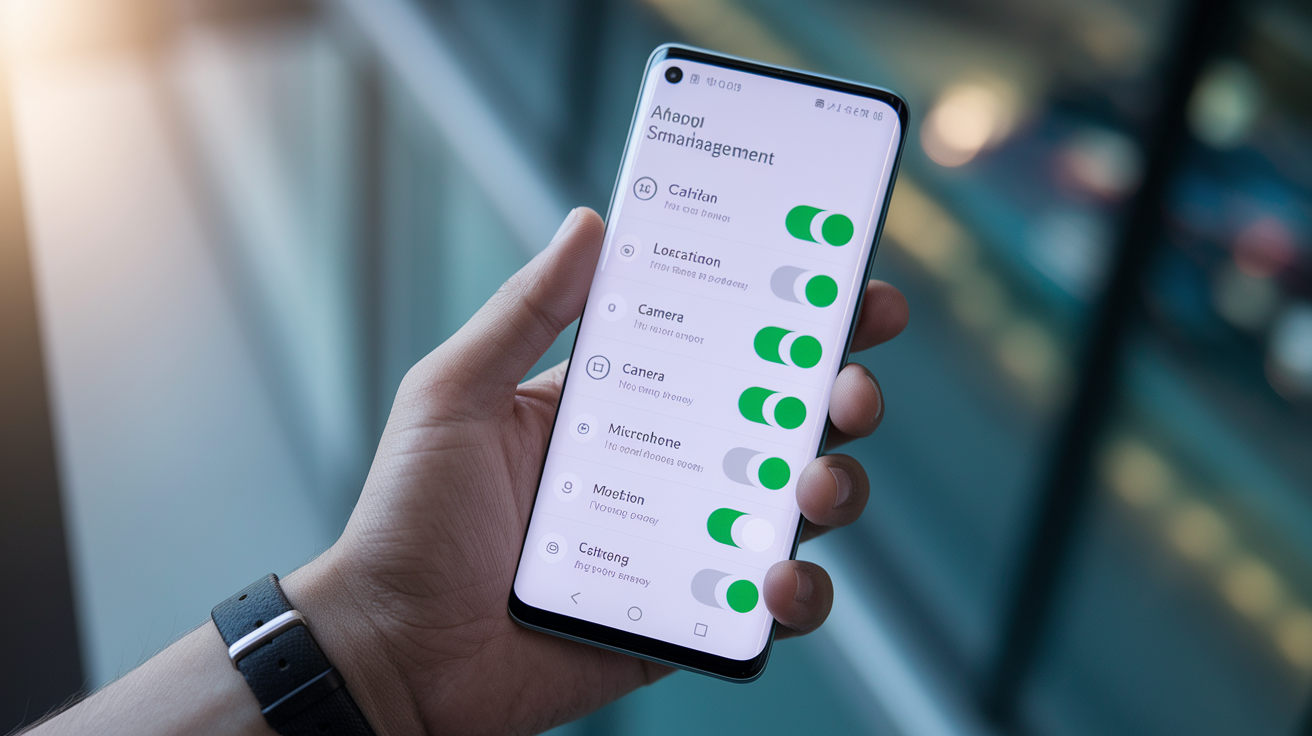
Android lets you control what apps can access after you’ve installed them. The permission system lives in Settings, but how you get there depends on whether you’re revoking one permission across multiple apps or pulling all permissions from a single app.
Android 6.0 (Marshmallow) and newer versions let you revoke permissions without uninstalling. If you’re on Android 5.1 or older, you’re stuck. The OS won’t let you revoke anything after install, so your only move is to uninstall completely. Most devices today run 6.0 or higher, so these steps should work fine.
Revoking a permission can break stuff. Deny Location to a navigation app and it won’t show directions. Deny SMS to a messaging app and it won’t send texts. Some apps will ask again when they need the permission. Others fail quietly and show an error. Test the app afterward to see what breaks.
To revoke all permissions for one app:
- Open Settings.
- Tap Apps (or Applications on some phones).
- Select the app.
- Tap Permissions.
- Tap the three dots in the top right, then All permissions to see everything.
- Toggle each permission to Allow or Deny.
To revoke one permission across all apps that use it:
- Open Settings > Apps.
- Tap More (three vertical dots), then Settings and Control > App Settings > App Permissions.
- Select the permission category (Camera or Location, for example).
- Review which apps requested that permission.
- Toggle Allow or Revoke for each app.
Alternate path via Privacy settings:
- Open Settings > Privacy.
- Tap the permission you want to review (Location or Microphone, for example).
- Toggle Allow or Revoke for each app.
Screenshot placeholders: include a screenshot of the App Permissions screen showing apps with Camera access, and a screenshot of the per-app Permissions page with toggles for Location, Camera, and Microphone.
Understanding Android Permission Types to Revoke Safely

Android groups permissions into categories like Camera, Location, Microphone, Contacts, Files, and Phone. Each category can contain multiple individual permissions. Location includes both “precise location” (GPS accuracy) and “approximate location” (city level). When you revoke “Location” in Settings, you’re usually revoking both unless the app only requested approximate.
The system labels certain permissions as “dangerous” because they touch sensitive data or hardware. These are the permissions Android prompts you to allow or deny at runtime. The full list includes Calendar, Call logs, Camera, Contacts, Files, Location, Microphone, Music and audio, Nearby devices, Notifications, Phone, Photos and videos, and Physical activity.
Camera blocks photo and video capture. Breaks QR scanners, video chat apps, and camera features in social media.
Location (precise and approximate) stops map apps, ride share apps, and weather apps from detecting your position.
Microphone disables voice input, voice calls, and audio recording.
Contacts stops the app from reading, editing, or adding to your contact list. Breaks auto-complete in messaging apps.
Files (Storage) prevents reading or writing files on your device. Breaks file managers, photo editors, and document viewers.
SMS blocks sending or reading texts. Breaks two-factor authentication apps that read codes via SMS.
Call logs prevents viewing or modifying your call history.
Notifications blocks alerts or badges on your home screen.
Calendar stops reading or creating calendar events.
Physical activity (Sensors) prevents access to step counters, heart rate monitors, and motion sensors.
Android Version Differences When Revoking Permissions
Android 6.0 (Marshmallow), released in 2015, introduced runtime permissions. Before that, apps declared all permissions in the manifest. You either accepted them all at install or didn’t install the app. Once installed, you couldn’t revoke individual permissions. The only way to remove access on Android 5.1 or older is to uninstall.
If you’re still on Android 5.1 or earlier, upgrade to a newer version if your device supports it. Most phones released after 2016 ship with Android 6.0 or higher. Upgrading unlocks per-permission toggles in Settings and gives you the ability to audit and revoke access without deleting apps.
Newer Android versions (starting with Android 11) add auto-reset for unused permissions. If you don’t open an app for several months, Android automatically revokes sensitive permissions like Location, Camera, and Microphone. Next time you open the app, it’ll prompt you to grant those permissions again. This runs in the background and doesn’t require manual setup, but you can disable it per-app if you want an app to keep permissions even when you don’t use it regularly.
Using Auto-Reset and Background Limits to Revoke Hidden Access

Revoking user-visible permissions doesn’t stop apps from running in the background, starting at boot, or using network access. Android and some phone manufacturers add separate controls to restrict background activity. These controls don’t show up in the standard Permissions list, so you have to dig into battery or app management settings.
Samsung devices include a “Background usage limits” feature with two restriction levels. Open Settings > Battery and Device Care > Background usage limits. You can add apps to one of two lists: Sleeping apps (which run only occasionally in the background) or Deep sleeping apps (which never run in the background until you manually open them). Tap the Plus symbol to add an app to either list.
Sleeping apps let the app run in the background occasionally. It may still receive some updates and notifications, but less frequently.
Deep sleeping apps completely block background activity. The app won’t update, sync, or send notifications until you open it manually.
Impact on functionality: Adding a messaging app or email app to the Deep sleeping list stops new messages from arriving until you open the app. Use this carefully if you rely on real-time notifications.
Which App Permissions Are Safe to Revoke and Which May Break Apps

Most users can safely revoke Location, Camera, Microphone, Contacts, and SMS from apps that don’t strictly need them. A flashlight app doesn’t need your location. A calculator app doesn’t need microphone access. Revoking these improves privacy and doesn’t break core functionality.
Some permissions are critical for certain app types. Navigation apps like Google Maps or Waze won’t work if you revoke Location. File management apps and photo editors need Files (Storage) to open, save, and modify documents and images. Messaging apps like WhatsApp or Signal need Phone and SMS permissions to send texts and make calls. Revoke these and the app may fail silently, crash, or display an error asking you to re-enable the permission.
| Permission | Safe to Revoke? | Possible Impact |
|---|---|---|
| Location | Yes, for most apps | Breaks navigation, weather, ride share, and location-based reminders |
| Camera | Yes, unless app scans codes or takes photos | Disables QR scanning, video chat, photo capture in social apps |
| Microphone | Yes, unless app records audio or makes calls | Blocks voice input, voice calls, audio recording |
| Files (Storage) | No, for file or photo apps | Prevents opening, saving, or editing files and images |
Checking and Auditing App Permissions After Installation

Android includes a built-in audit tool called “Permissions Checkup” inside Google Play Protect. It scans your installed apps and alerts you if any app has permissions that seem excessive or unusual for its category. If a simple note-taking app requests Camera, Microphone, and Location, Play Protect may flag it.
You can also manually audit permissions by category. Open Settings > Privacy, then tap any permission name (like Camera or Location). You’ll see every app that’s requested that permission, along with whether you’ve granted or denied it. This view makes it easy to spot apps that shouldn’t have certain access.
Check which apps have Location access and revoke it from apps that don’t need your position.
Review Camera access and remove it from apps that aren’t photo, video, or QR-scanning tools.
Audit Microphone access and deny it to apps that don’t record audio or handle voice input.
Look at Contacts access and revoke it from games, utilities, and other apps that don’t need your contact list.
Review Files (Storage) access and confirm that only file managers, photo editors, and document apps have it.
Check SMS permissions and remove them from any app that doesn’t send or read text messages.
Audit Notifications and disable alerts from apps that spam you with promotional messages.
Remember that revoking user-visible permissions doesn’t block network access, startup behavior, or background services. Those require separate controls.
Revoking Permissions for Preinstalled Apps, System Apps, and Apps That Resist Removal

Some apps come preinstalled on your phone and can’t be deleted through normal means. Examples include manufacturer bloatware (like Samsung’s Upday news app), carrier-installed apps, and core system apps. These apps may not let you revoke certain permissions because they’re tied to system functions.
If you can’t delete a preinstalled app, the fallback is to disable it. Open Settings > Apps, select the app, and tap Disable. This stops the app from running and hides it from your app drawer, but it doesn’t remove the app’s files from your device. Disabling isn’t as effective as deleting, but it’s the closest you can get without rooting your phone.
Deleting an app is the only guaranteed way to remove all access to your device’s hardware, data, and network. If you’re concerned about a particular app and you can’t revoke the permissions you want, uninstall it. Some system apps can’t be uninstalled or disabled without using advanced tools like ADB (Android Debug Bridge), which we’ll cover in the next section.
How to Revoke Permissions Using ADB (Advanced Option)
Android Debug Bridge (ADB) is a command-line tool that lets you control your phone from a computer. You can use ADB to revoke permissions for any app, including system apps that don’t allow revocation through Settings. This method requires USB debugging to be enabled in Developer Options and a working ADB installation on your computer.
adb shell pm revoke com.example.app android.permission.CAMERA
Replace com.example.app with the package name of the app you want to manage, and replace android.permission.CAMERA with the specific permission you want to revoke (for example, android.permission.ACCESS_FINE_LOCATION for precise location or android.permission.RECORD_AUDIO for microphone).
ADB commands bypass the normal Settings interface, so they can force permission changes on apps that normally resist revocation. But some system apps may re-grant permissions automatically after a reboot or update. Use this method only if you understand the risks and have a specific reason to revoke permissions that the UI doesn’t let you control. Revoking critical system permissions can cause boot loops, crashes, or loss of core functionality. Always back up your device before experimenting with ADB.
Troubleshooting Issues After Revoking App Permissions

Apps behave unpredictably when you revoke permissions they expect to have. Some crash immediately. Others display an error message and ask you to re-enable the permission. A few fail silently and appear to work but don’t complete critical tasks. If an app stops working after you revoke a permission, you’ve got a few options.
First, try re-enabling the permission to see if the app works again. If it does, the permission was required for core functionality. Second, check if the app offers a “reset app preferences” option. Open Settings > Apps > Reset app preferences (usually found under the three-dot menu). This resets all permission and notification settings to their defaults without deleting app data. Third, consider reinstalling the app. Uninstall it completely, then reinstall from the Play Store. The fresh install may prompt you to grant permissions again, and the app should work normally if you allow the required permissions.
Re-enable the permission and test the app to confirm it was necessary.
Reset app preferences from Settings > Apps > More > Reset app preferences.
Reinstall the app to clear permission-related bugs or corrupted settings.
Contact the app developer if the app continues to malfunction or if you believe it requests excessive permissions without a valid reason.
Final Words
in the action: We walked through where permissions live and how to change them, including Settings > Apps > select app > Permissions > three dots > All permissions and Settings > Privacy. You got the permission types to watch, Android version limits, auto-reset and background limits, ADB options for advanced users, plus auditing and troubleshooting tips.
Make a habit to revoke app permissions after install Android, starting with camera, mic, and location, then test the app and tweak settings. You’ll keep control and stay safer.
FAQ
Q: What does revoke app permissions mean?
A: Revoke app permissions means removing an app’s granted access to device features (camera, location, mic, etc.), stopping it from using those features until you grant permission again; some app functions may stop working.
Q: How to remove app permissions after uninstall?
A: To remove app permissions after uninstall, uninstalling the app automatically clears its granted permissions; double-check Settings > Privacy > Permission manager to confirm no leftover access and clear Play Store cache if prompts persist.
Q: How to revoke app permissions on Android?
A: To revoke app permissions on Android, open Settings and use a path such as Settings > Apps > select app > Permissions > three dots > All permissions, or Settings > Privacy > Select Permission. On Android 6.0+ you can revoke per permission; older versions require uninstalling.
Q: How do I remove the permission to install apps?
A: To remove the permission to install apps, go to Settings > Apps > Special app access > Install unknown apps, choose the app and toggle off Allow from this source to block sideloading.