

Think one click won’t hurt your company? Think again.
This phishing incident response checklist for employees lays out the exact steps to take in the first minutes after you spot a suspicious message.
What you do right away decides whether an attacker gets in, steals data, or gets blocked fast.
Read on to learn the quick actions that help IT contain threats, who to notify, and what evidence to save so the attack stops before it spreads.
Immediate Employee Phishing‑Response Checklist
When you get a suspicious message, the first few minutes matter. What you do right now determines how far a phishing attack spreads, whether sensitive data leaks, and how fast IT can shut things down. The quicker you report and the less you touch that message, the safer everyone is.
Here’s what to do the second something feels off:
-
Stop everything. Don’t click links, open attachments, reply, or download anything.
-
Don’t forward the message to coworkers asking what they think. Forwarding can spread malicious code and just creates chaos.
-
Hit your email’s “Report Phishing” button if you’ve got one. It keeps the original message and headers intact.
-
No report button? Forward the email to your security alias. Usually something like phishing@yourcompany.com or security@yourcompany.com. Check your IT handbook if you’re not sure.
-
Grab a screenshot showing the sender, subject, and anything weird before you delete it.
-
Write down exactly when the email landed and note if you did anything (clicked, downloaded, typed in credentials).
-
Tell your manager you reported a phishing attempt. Quick verbal heads-up or separate message works.
-
Keep the suspicious message until IT says they’ve got what they need. Don’t delete it before confirmation.
Fast action protects more than just you. Phishing campaigns often hit dozens of people within minutes. When you report early, security can block malicious domains, pull copies from other inboxes, and cut off attacker access before the next person clicks. Every minute you wait raises the odds someone else opens the same thing and hands over credentials. Reporting first, even if you’re unsure, is always right.
Key Indicators That Suggest a Message May Be Phishing
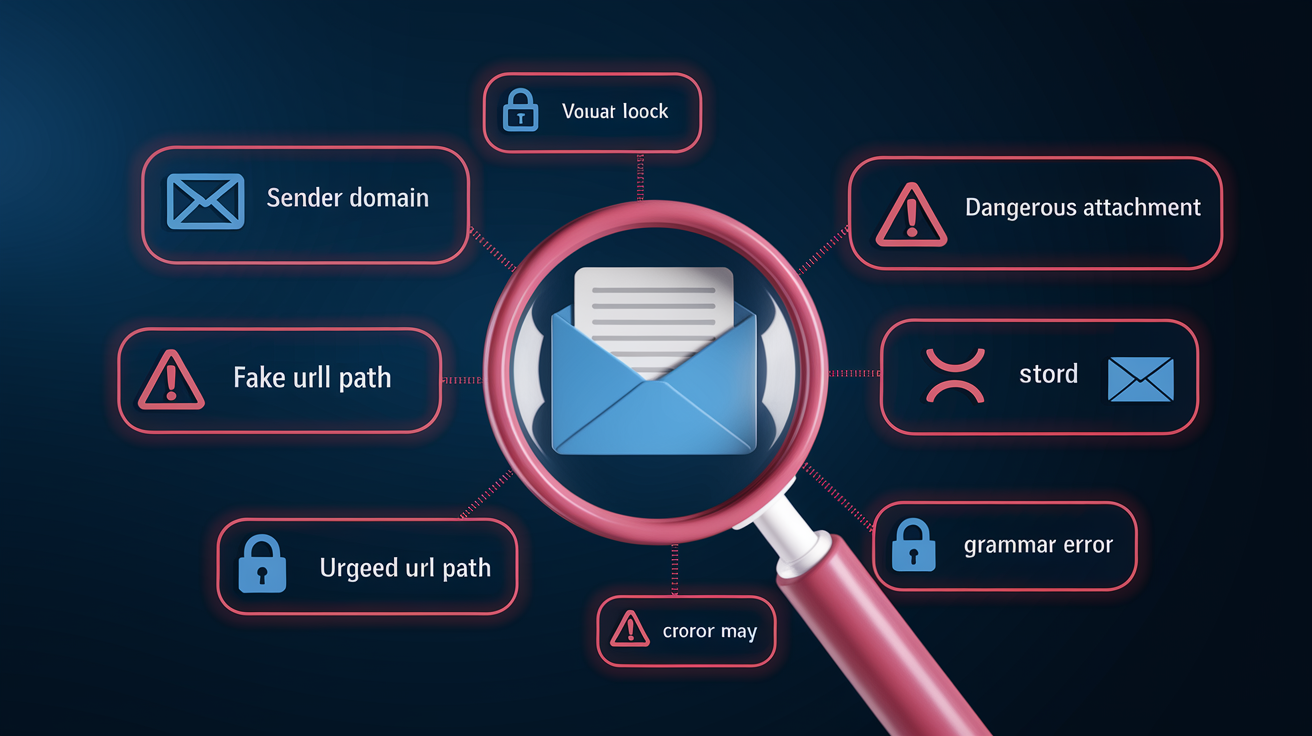
Phishing messages usually leave clues that help you figure out whether to report. Attackers count on urgency, confusion, and slick branding to push you past your normal caution. But a quick look at a few details typically reveals the scam.
Watch for these six warning signs before you click, reply, or download:
-
Urgency or threats. “Your account locks in 24 hours,” “Immediate action required,” or “Confirm your identity now” are classic pressure moves designed to shut down your rational thinking.
-
Mismatched sender details. Display name says “IT Support” but the actual address is something like admin@micros0ft‑verification.com. Hover over the sender name (don’t click) to see the real address.
-
Suspicious links. URLs using shorteners (bit.ly/…), misspellings (amaz0n.com, paypa1.com), or domains that don’t match the supposed sender.
-
Unexpected attachments. Files with extensions like .exe, .zip, .scr, .js, or macro documents (.docm, .xlsm) showing up without warning or clear business reason.
-
Requests for credentials, banking info, or payment. Real internal systems and vendors will never ask you to reply with passwords, MFA codes, credit card numbers, or wire instructions via email.
-
Bad grammar, spelling mistakes, or awkward wording. Random caps (“Your Account Is Now Locked”), missing words, and stiff language that doesn’t match how your team or vendors normally talk.
If you catch even one of these, treat the message as suspicious and report it. Real urgency from your IT team or bank will survive the five minutes it takes to verify through official channels. Phishing urgency vanishes the moment you pause to check.
Proper Internal Reporting Procedures for Employees
Reporting phishing correctly gives security teams the evidence they need to investigate, contain, and block the threat across the whole org. Random warnings to coworkers can mess up incident response and slow everything down.
Use this sequence every time you report something suspicious:
-
Click your email’s “Report Phishing” button if it’s there. Automatically forwards the full message, headers and attachments, to your security team without messing up evidence.
-
No report button? Forward the email as an attachment (not inline) to your org’s phishing alias. Check your employee handbook, security portal, or IT materials for the right address.
-
Add a short note explaining what seemed wrong. “Unexpected invoice from unknown sender,” “Link points to weird domain,” or “Password reset request I never started.”
-
Wait for confirmation. Most orgs send an automated reply within minutes with a ticket number. If you don’t hear back within your org’s SLA (usually 24 to 48 hours), follow up with your manager or IT help desk.
Don’t warn peers by forwarding the phishing message directly or posting it in team chat. Those helpful alerts can accidentally spread malicious links to people who might click before reading your warning. If you want to raise general awareness after reporting, ask your security team to send an official alert. And never reply to the suspected sender asking if the message is real. Replying just confirms your email works and invites more attacks.
What Information Employees Should Preserve for Security Teams
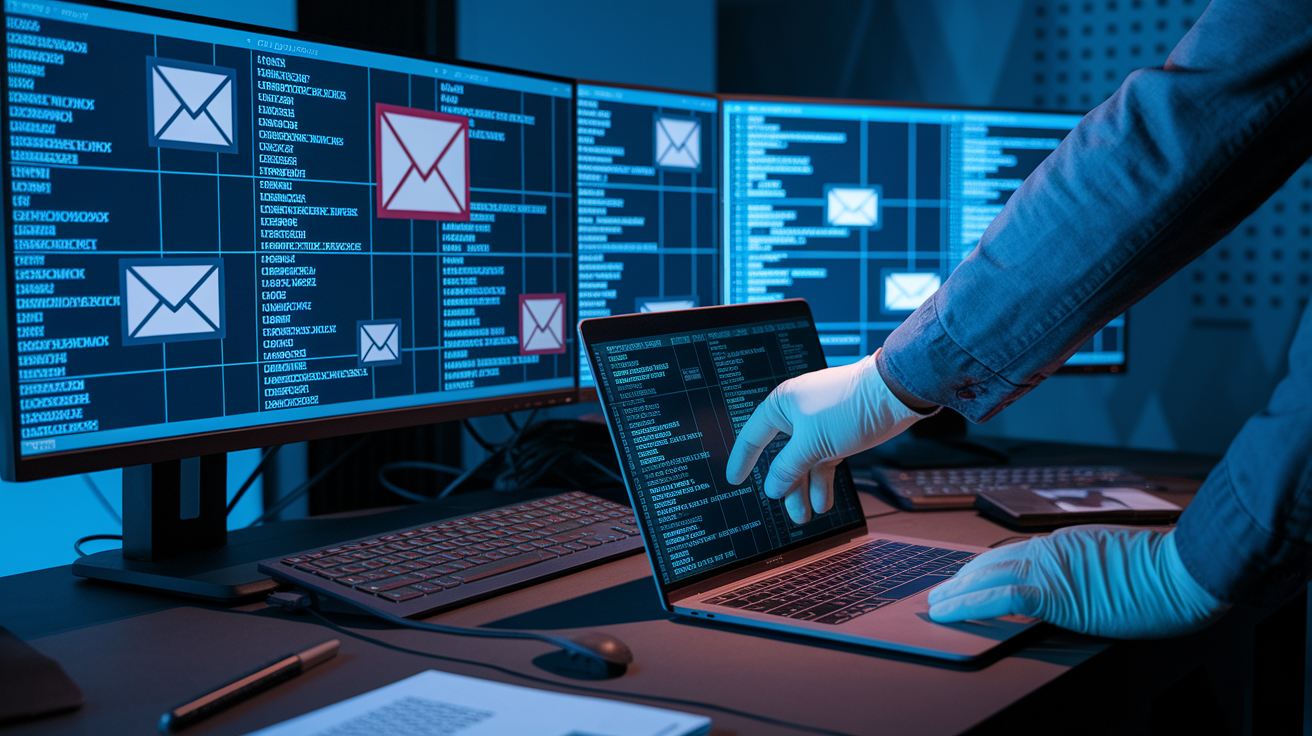
Security analysts need specific technical details to trace phishing campaigns, block malicious infrastructure, and figure out whether other employees or systems got hit. Saving the right evidence when you report helps investigators work faster and more accurately.
Your report should include the original message with full headers (forwarding as an attachment does this automatically). But if you need to collect extra context manually, focus on these five things:
-
Full sender address. Copy the actual email address from the “From” field, not just the display name. Note any “Reply‑To” address if it’s different.
-
All visible URLs. Copy link text and, if you can do it safely without clicking, hover over links to reveal the real destination. Screenshot both the link text and underlying address.
-
Attachment file names and extensions. Note every attachment name (like InvoiceOct2024.pdf.exe) but don’t open, download, or forward attachments except through the official reporting channel.
-
Exact timestamp. Record when the message hit your inbox (date, time, time zone if visible) so analysts can match it with server logs and other reports.
-
Any interaction you took. If you clicked a link, opened an attachment, replied, or entered credentials before you realized it was suspicious, write down exactly what you did and when. Honest disclosure helps security prioritize containment and protect your account.
Screenshots are gold. Capture the entire message window showing sender, subject, body, and any buttons or forms. If the message has a fake login page or urgent payment request, screenshot that too. Once you’ve reported and gotten confirmation from IT, you can delete the suspicious message. Keeping it after the security team has a copy doesn’t help and just clutters your inbox.
Employee Actions If They Clicked a Suspicious Link or Downloaded an Attachment
If you realize you clicked a phishing link, opened a suspicious attachment, or typed credentials into a fake login page, immediate self-reporting and containment can stop a small mistake from becoming a full breach. Security teams expect accidental clicks as normal human behavior, not failures. Report honestly and fast.
Take these six steps right away if you interacted with a phishing message:
-
Disconnect your device from the network immediately if IT policy says to (turn off Wi‑Fi or unplug Ethernet). This can stop malware from spreading or calling home.
-
Tell IT or security through a separate device or channel. Use your mobile phone, a colleague’s computer, or your org’s security hotline. Explain what you clicked, opened, or submitted.
-
Change your password on affected accounts as soon as IT confirms it’s safe. Use a different trusted device if your primary workstation might be compromised.
-
Revoke active sessions and app permissions if your org gives you self-service tools to sign out of all devices or review connected apps.
-
Run an endpoint security scan if IT tells you to, or wait for remote guidance. Don’t try to remove suspected malware yourself unless you’re trained.
-
Save evidence. Leave browser history, downloads, and temp files alone until IT confirms they’ve captured forensic snapshots.
After you report, IT or security will typically isolate your account, reset credentials, kill active sessions, and scan your device for malware or unauthorized changes. You might get follow-up questions about what you saw, what data the phishing page wanted, or whether you noticed anything unusual afterward (slow performance, unexpected pop-ups, new browser extensions). This info helps analysts figure out whether attackers got into sensitive systems, moved sideways, or stole data. Most orgs resolve accidental clicks within hours if you report immediately. But delays of even a few hours let attackers establish persistence, harvest more credentials, or pivot to other targets inside your network.
How Employees Can Strengthen Prevention Through Routine Cyber‑Hygiene
Reporting phishing matters, but small daily habits cut the chance that phishing messages reach you or succeed when they do. Strong cyber hygiene doesn’t require technical expertise. Just consistent, deliberate choices about how you handle email, passwords, software updates, and links.
Build these five habits into your routine to lower phishing risk and protect your org:
-
Verify unexpected requests through a separate channel. If an email asks you to reset a password, approve a payment, or share sensitive data, contact the supposed sender via phone, chat, or a known official website before you act. Never use contact details from the suspicious message itself.
-
Keep software and operating systems updated. Enable automatic updates for your email client, browser, and OS. Attackers exploit known vulnerabilities in outdated software to deliver malware even when you don’t click.
-
Use unique, strong passwords for every account and turn on multi-factor authentication (MFA) wherever possible. Password managers make this practical. MFA adds a second verification step (a code sent to your phone or authenticator app) that blocks attackers even if they steal your password.
-
Hover before you click. On desktop email, hover your mouse over any link to reveal the true destination URL in a tooltip or status bar. If the displayed text says “yourbank.com” but the tooltip shows “y0urbank.com” or an unfamiliar domain, don’t click.
-
Treat all unsolicited attachments and links with caution, even from known contacts. Compromised accounts often send phishing messages to entire contact lists. If a colleague sends you an unexpected file or link, verify with them directly (separate message or call) before opening.
Small, repeated actions add up. A workforce that pauses to verify, reports quickly, and keeps systems patched becomes a tough target. Attackers move to easier prey when phishing campaigns consistently fail and generate immediate reports instead of stolen credentials.
Final Words
If you see a suspicious email, stop interacting with it and report it to IT right away. This guide gave a fast employee phishing‑response checklist, clear red flags to watch for, how to report correctly, what evidence to save, and steps to take if you clicked something.
Following these steps helps contain threats quickly and gives security teams what they need to investigate.
Keep a simple phishing incident response checklist for employees handy. Pin it, save it on the intranet, or run quick drills — small habits make everyone safer.
FAQ
Q: What should I do immediately after receiving a suspected phishing email?
A: You should stop interacting with the message, report it to IT or security right away using the report button or support address, avoid forwarding the original email, and follow containment instructions.
Q: What are the key signs that an email may be phishing?
A: The key signs that an email may be phishing are urgent or threatening language, mismatched sender domains, suspicious links, unexpected attachments, requests for credentials or money, and poor grammar or odd tone.
Q: How do I properly report a phishing email at work?
A: You should report a phishing email at work by using the report phishing button or forwarding it to your security team, include brief notes about why it seemed suspicious, and don’t manually warn coworkers.
Q: What information should I preserve for the security team after receiving a phishing message?
A: You should preserve full email headers, the sender address, timestamps, screenshots of the message, and a short note of any actions you took to help the security team investigate.
Q: What do I do if I clicked a suspicious link or opened an attachment?
A: If you clicked a suspicious link or opened an attachment, you should stop activity, disconnect from the network if instructed, change passwords, run an endpoint scan, and notify IT immediately.
Q: How can employees reduce phishing risk with routine cyber‑hygiene?
A: Employees can reduce phishing risk with routine cyber-hygiene by doing regular awareness training, keeping software updated, using strong unique passwords and two-factor authentication, and checking links before clicking.