


What if your password couldn’t be stolen?
Passkeys do exactly that, replacing shared passwords with cryptographic keys kept on your device.
The server stores only a public key, while your phone or a security key keeps the private key and signs a one-time challenge to prove you’re you.
That design makes phishing and leaked password databases useless.
This post explains how passkeys replace passwords through cryptographic authentication, why it matters, and the simple steps users and sites should take to switch.
How Passkeys Work (Explained Simply and Quickly)
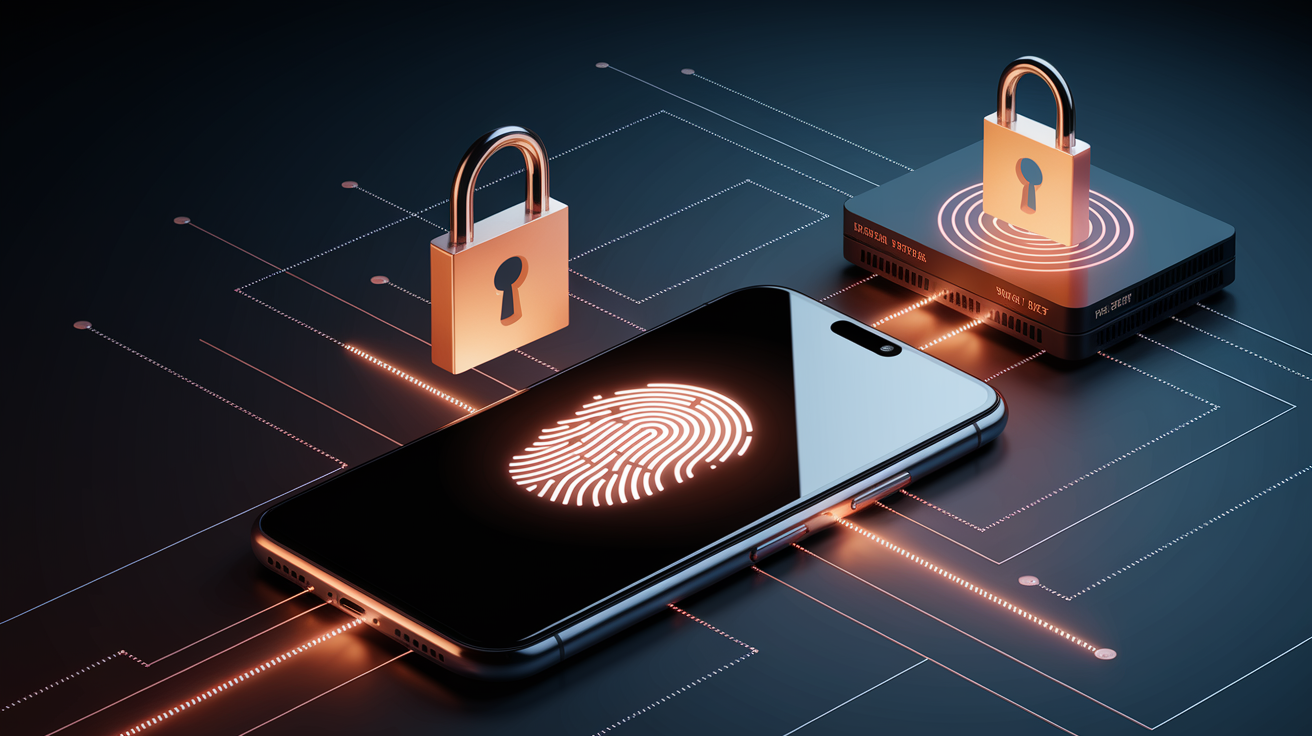
A passkey is a cryptographic credential that lives on your device, not in your head or a password manager somewhere. Here’s the thing: passwords are shared secrets. Both you and the website know them. Passkeys don’t work that way. They use a public-private key pair. The private key stays locked inside your device’s secure hardware, and the website only stores a public key that can verify who you are but can’t be used to fake being you.
The private key never leaves your device. Not even when you sign in. When you create a passkey for a website, your device generates two mathematically linked keys. The public key gets sent to the website’s server and stored with your account. The private key stays on your phone, laptop, or security key, protected by the same biometric sensors or PIN you already use to unlock your device. Because of this split, there’s nothing a hacker can steal from the website that would let them log in as you.
Authentication happens through a simple local action. Face ID, Touch ID, fingerprint scan, or device PIN. No typing. When you sign in, the website asks your device to prove you own the passkey. Your device prompts you to confirm with a biometric or PIN, signs a cryptographic challenge using the private key, and sends back proof that only the real owner of that key could create.
Here’s what the login sequence looks like:
- You visit the website and enter your username or email.
- The website sends a cryptographic challenge to your device.
- You unlock your device with Face ID, Touch ID, or a PIN to authorize the login.
- Your device signs the challenge with the private key and returns the signed response to the website, which verifies it using the stored public key and grants access.
The Full Passkey Login Flow

When you try to sign in, the website’s server generates a unique, one-time cryptographic challenge. It’s a random string of data called a nonce. This challenge gets sent to your browser or app, which passes it to the passkey authenticator on your device. The server also specifies which account it expects to authenticate and which domain is making the request. Passkeys are bound to the exact domain where they were created, so your device will only respond if the request comes from the legitimate site.
On the device side, your operating system or browser displays a prompt asking you to verify your identity. Could be a bottom-sheet dialog on an iPhone asking for Face ID. Maybe a Windows Hello face scan on a laptop. Or a fingerprint prompt on an Android phone. Once you confirm, the private key signs the challenge inside a secure enclave, an isolated hardware module that never exposes the key itself. The signed response, along with metadata about the authenticator, gets sent back to the server. The server checks the signature against the public key it stored during registration, verifies the origin matches, and confirms the challenge was signed correctly. If everything checks out, you’re in.
Five key moments in the authentication process:
- Website generates and sends a unique challenge tied to your account and domain
- Device prompts you to unlock using biometric or PIN
- Private key signs the challenge inside secure hardware without ever leaving the device
- Signed assertion is transmitted back to the website’s server
- Server validates the signature using the stored public key and completes sign-in
The Cryptography Behind Passkeys
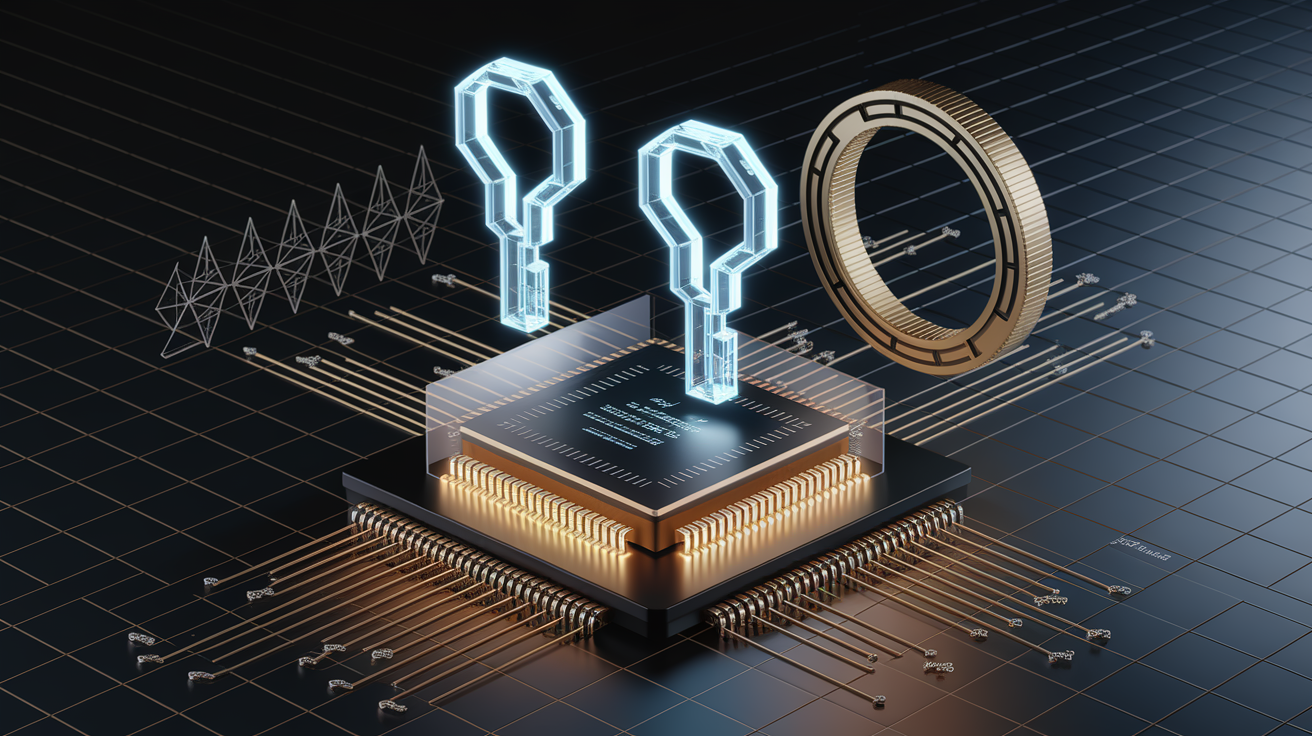
Passkeys rely on asymmetric encryption, sometimes called public-key cryptography. In this model, a pair of keys is generated together: one public, one private. They share a special mathematical relationship. Data encrypted or signed by the private key can be verified or decrypted only by the corresponding public key, and vice versa. This one-way relationship means the public key can be freely shared and stored on servers without risk. It can’t be used to derive the private key or to impersonate the user. During passkey authentication, the private key signs a server-generated challenge, and the server uses the public key to confirm the signature is valid and came from the holder of that private key.
Private keys are stored in hardware-backed secure enclaves. Isolated processor modules like Apple’s Secure Enclave, Android StrongBox, or Windows TPM (Trusted Platform Module). These enclaves are designed so that even the operating system can’t read the raw private key. When you authenticate, the enclave performs the cryptographic signing operation internally and outputs only the signed result. This protects the private key from malware, memory dumps, and physical extraction attempts. For device-bound passkeys on FIDO security keys (YubiKey, Titan), the private key is generated and stored on the key’s dedicated chip and never syncs anywhere.
Origin binding is what makes phishing nearly impossible. When a passkey is created, it’s cryptographically tied to the exact domain (the “relying party ID”) that requested it. For example, example.com. The private key will only sign challenges that come from that specific origin. If an attacker creates a fake login page at examp1e.com and tricks you into visiting it, your device will refuse to use the passkey for example.com because the origins don’t match. There’s no way to type your passkey into the wrong site by accident. You never type it at all.
Implementing Passkeys on Websites

Enabling passkeys on a website requires implementing the WebAuthn API, a W3C standard that defines how browsers and servers exchange credentials. The API provides two core ceremonies: registration and authentication. During registration, the server calls navigator.credentials.create() in the browser, which triggers the device to generate a new key pair and return the public key along with optional attestation data. The server then stores the public key, a unique credential ID, and metadata about the user account. The private key is stored by the authenticator and never transmitted.
During authentication, the server calls navigator.credentials.get() and provides a challenge. The browser prompts the user to verify their identity, the authenticator signs the challenge with the private key, and the signed assertion is returned to the server. The server verifies the signature using the stored public key, checks that the challenge matches what it sent, and confirms the origin and relying party ID are correct. Both ceremonies require TLS (HTTPS) to prevent man-in-the-middle attacks, and the server must handle challenge generation, nonce tracking, and cryptographic verification.
| Method | Description | Complexity Level |
|---|---|---|
| Manual WebAuthn Integration | Directly implement registration and authentication endpoints using the WebAuthn specification and handle all cryptographic verification in your backend. | High |
| Third-Party Auth SDKs | Use libraries or SDKs (such as SimpleWebAuthn, Yubico libraries, or Auth0 Passkeys) that abstract WebAuthn ceremony handling and provide ready-made server logic. | Medium |
| CIAM Platform Integration | Adopt a customer identity platform (Okta, Auth0, Microsoft Entra) that offers passkey support out of the box with minimal code changes. | Low |
| Passkey-Only Enforcement | Remove password fallbacks entirely and require all users to register and authenticate with passkeys. Highest security but requires robust account recovery and user education. | Very High |
Security Advantages of Passkeys
Passkeys eliminate the shared-secret model that makes passwords vulnerable. Because the private key never leaves the user’s device and the server stores only a public key, there’s no secret for attackers to steal from a database breach. Even if a website’s entire user database is leaked, the public keys are useless for logging in as users. They can only verify signatures, not create them. This removes the risk of credential stuffing, where stolen username-password pairs from one breach get reused across other sites.
Phishing attacks fail against passkeys because of origin binding. A fake login page can’t trick your device into using a passkey registered for the real site. The cryptographic handshake will only complete if the domain matches exactly. There’s no way to “type your passkey” into a phishing form because the passkey is never exposed to you or the browser in a form that can be copied. Even sophisticated phishing kits that proxy authentication in real time can’t capture or replay passkey credentials.
Five major security advantages:
- Phishing-resistant: Passkeys work only on the exact domain where they were created and can’t be used on look-alike attacker sites.
- Breach-proof: Servers store only public keys, so compromised databases yield nothing attackers can use to impersonate users.
- Credential-stuffing immunity: Because each passkey is unique per account and site, stolen credentials from one breach are worthless elsewhere.
- Always strong: Passkeys are cryptographically generated and can’t be weak, guessed, or observed during entry. No “password123” equivalents.
- Resistant to physical coercion for remote attacks: While biometrics can be coerced in person, the passkey itself can’t be remotely extracted or transmitted to an attacker’s server.
Transitioning From Passwords to Passkeys

Users can start using passkeys on any supported site by creating one during sign-in or in account security settings. On a phone, this typically means tapping “Create a passkey” and confirming with Face ID or a fingerprint. Before you know it, your banking app will unlock with a glance instead of eight characters, two symbols, and a number you reset every three months. The passkey is saved to the device’s platform authenticator (Apple Passwords, Google Password Manager) or a third-party password manager like 1Password or Bitwarden. Once saved, future logins on that device or any device where the passkey syncs require only a biometric or PIN confirmation instead of typing a password.
Websites should offer passkeys as an option alongside existing authentication during a phased rollout. This hybrid approach lets users opt in when ready while maintaining password or other fallback methods for older devices, legacy browsers, or users who aren’t yet comfortable with passkeys. Product teams can measure conversion rates, sign-in success, and abandonment to track adoption. Google reported that users authenticating with passkeys are four times more likely to convert, and 83% of customers abandon account creation due to tedious password policies. Clear messaging, in-app prompts during onboarding, and one-click migration flows from password-based accounts help speed things up.
Cross-device syncing and recovery are critical to user confidence. Synced passkeys, those stored in iCloud Keychain, Google Password Manager, or a cross-platform password manager, automatically appear on all devices signed into the same account. Makes it seamless to sign in from a new phone or laptop. If a user loses a device, logging into the sync provider on a replacement device restores passkeys. For device-bound passkeys (hardware security keys like YubiKey or Titan), best practice is to register a backup key during account setup and store it securely. Websites should provide account recovery flows that allow users to add a new passkey or authenticate via identity verification if all authenticators are lost. Without robust recovery paths, a lost device can mean permanent account lockout. Recovery planning must be part of the migration strategy from day one.
Final Words
Passkeys replace passwords by keeping a private key on your device and a public key on the site, and by using a biometric or PIN to approve logins instead of typing a secret.
We walked through how passkeys work, the full login flow, the cryptography, how sites implement them, security advantages, and migration steps.
If you still wonder how do passkeys replace passwords on websites, they sign a site challenge with a device-bound private key to stop phishing and leaks. It’s simpler, safer, and adoption is growing.
FAQ
Q: What are the downsides of passkeys?
A: The downsides of passkeys are device-dependence, trickier account recovery if you lose a device, uneven website support, and reliance on vendor sync for cross-device portability.
Q: How do passkeys work instead of passwords?
A: Passkeys work instead of passwords by using public-private key pairs: the private key stays on your device, the site stores only a public key, and you approve logins with a biometric or PIN prompt.
Q: Should I replace all my passwords with passkeys?
A: You should replace passwords with passkeys when a site supports them; they’re stronger and easier to use, but keep passwords for legacy accounts or where account recovery and device sync aren’t available.
Q: Do I still have a password if I have a passkey?
A: You may still have a password if you have a passkey; passkeys remove the need to type passwords, but many sites keep passwords as a fallback for legacy access or recovery.